By L8MS Team · Updated 10 Nov 2026
The Report Editor (the button on Report Builder) is where administrators decide what reports contain. It has two tabs: Report Builder templates and Totals packs.
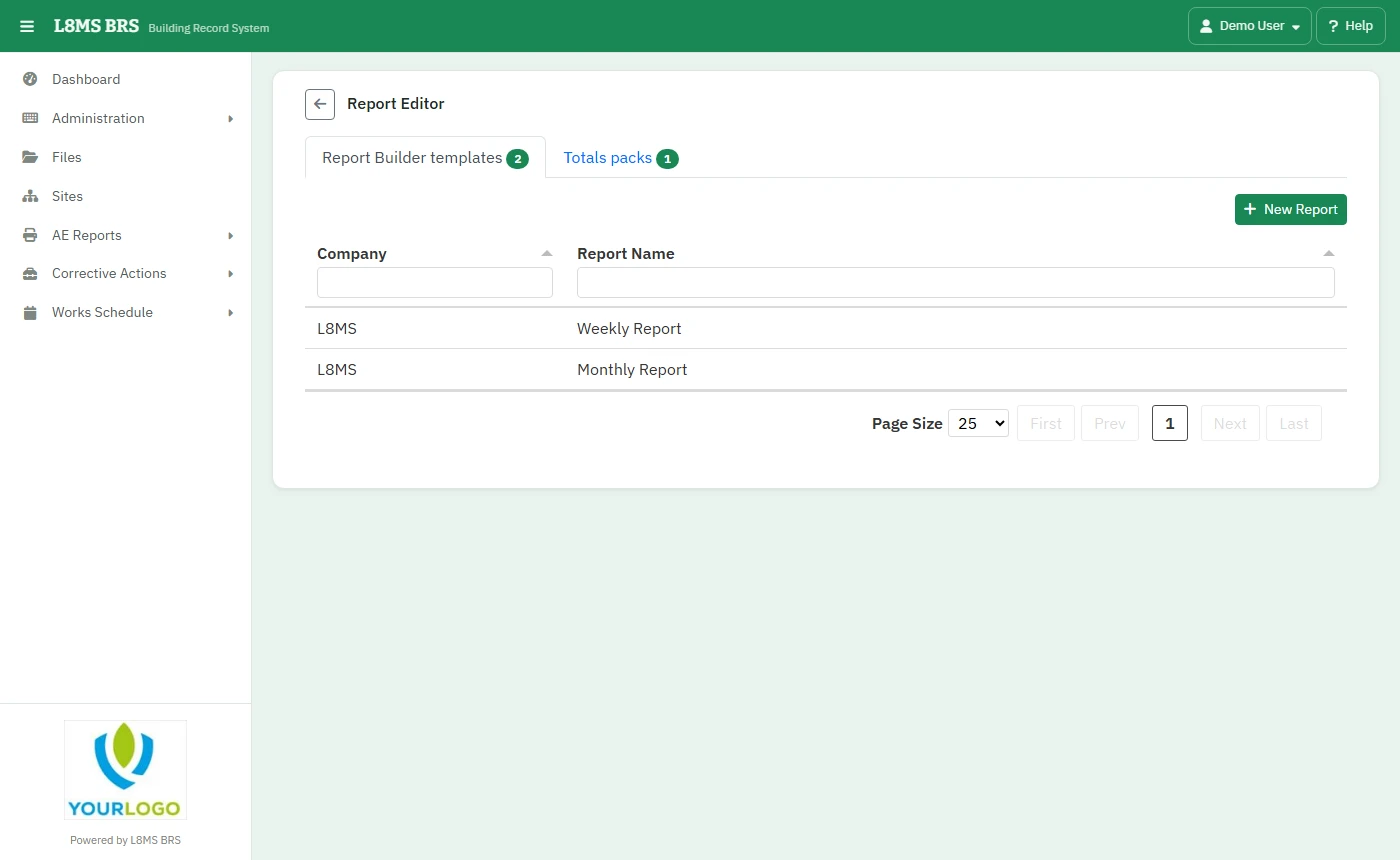 The Report Editor.
Report Builder templates
Click New Report, choose the Company, give it a Report Name, a title and a Report Order, and Save. Existing reports can be copied or deleted.
Open a report to see its Report Sections. Add Section — name, title, order and Section Type (Results or Sensors). Add Overview Page adds a summary sheet.
Open a section and use Add Rule to choose which Tasks and Tests go in it and how results are shown.
Totals packs
A totals pack runs several Completed vs missed checks reports at once — one sheet per line, plus an overview. You set everything except the dates; users run it from Interrogation and can schedule it.
On the Totals packs tab click New Pack, choose the Company, name it (for example Monthly Water Compliance) and save.
-
Open the pack and click Add Sheet: a Sheet name (for example Temperatures), the Tasks it counts, and optionally Responsibility, Group and Site. Leave a filter empty for all.
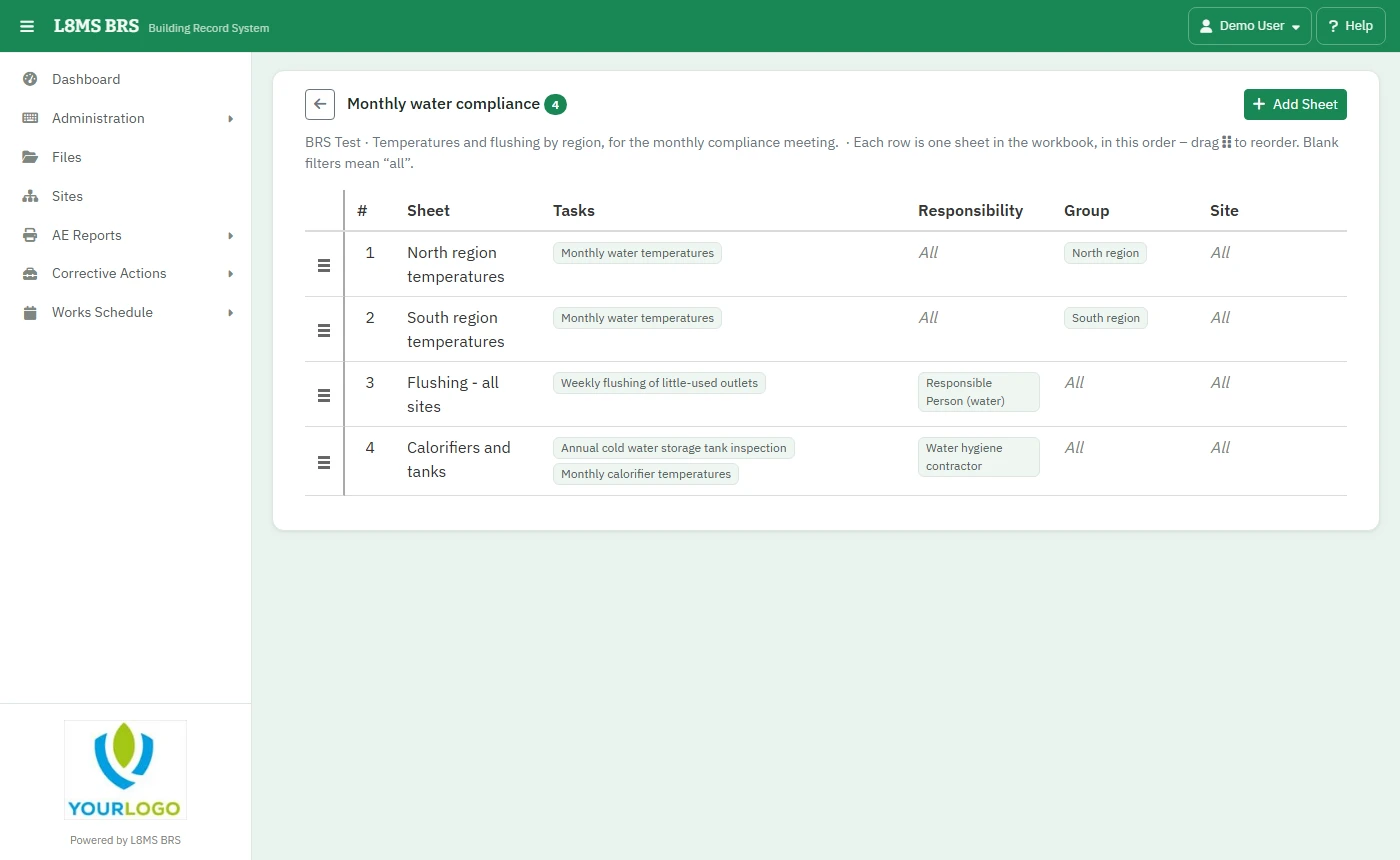 A totals pack’s sheets.
Drag sheets into order. A pack can be copied to another company.