By L8MS Team · Updated 10 Nov 2026
Several reports have a Schedule… button: Report Builder, Data Export, Results Viewer, Completed Tests Audit, Upcoming workload and Interrogation (Completed vs missed checks and Totals pack). A schedule sends the same report again and again, with the dates worked out each time.
Set one up
Set the report up as you want it (sites, tasks, filters), then click Schedule….
-
Give it a Name, choose How often (Every day, Every week, Every month) and what it is Covering (for example last calendar month).
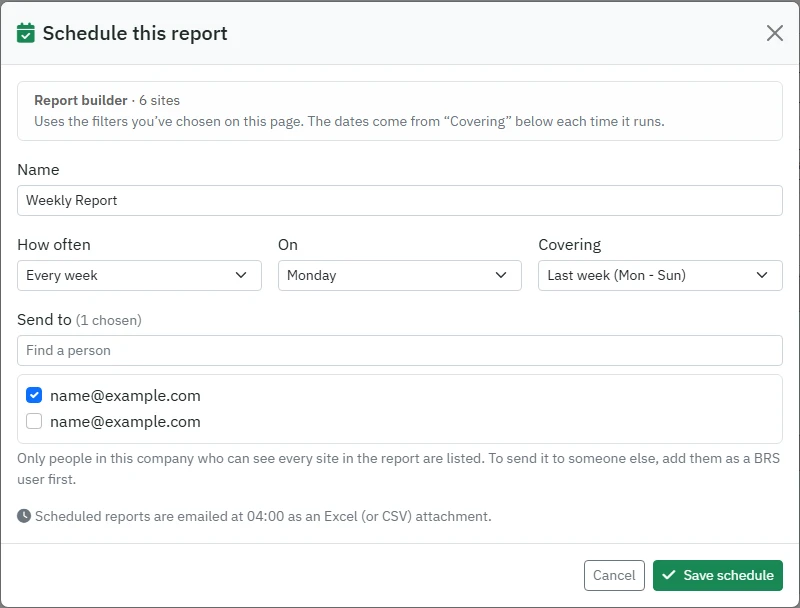 Scheduling a report.
Tick Don’t send it when there’s nothing to report if an empty report is no use.
Under Send to, find and add people. Only people in the company who can see every site in the report can be added.
Click Save schedule. Reports are emailed at 04:00 as an Excel (or CSV) attachment.
Manage your schedules
The Scheduled reports card on the hub lists them with their status (Active or Paused) and when they last ran.
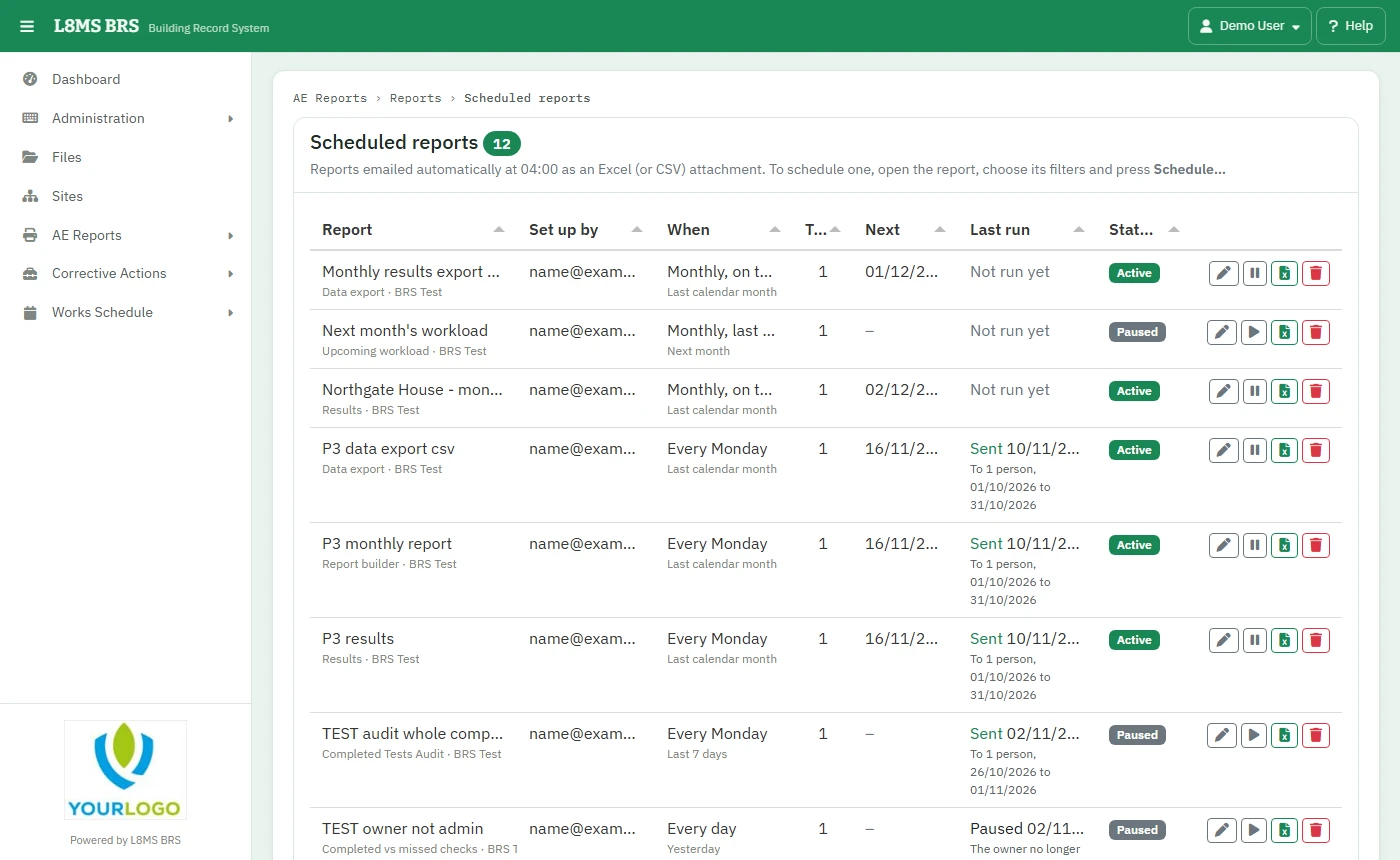 Scheduled reports.
- Edit, Pause / Resume, and Delete.
- The Excel button downloads it now, built as you, for today’s dates.
When things changeAnyone who loses access to a site in the report is taken off the list and the owner is told. If the owner can no longer run the report, or it fails three times running, it is paused and they are emailed.