By L8MS Team · Updated 10 Nov 2026
Administration › Users List lists everyone in the companies you administer. It is where people are added to BRS and given a role.
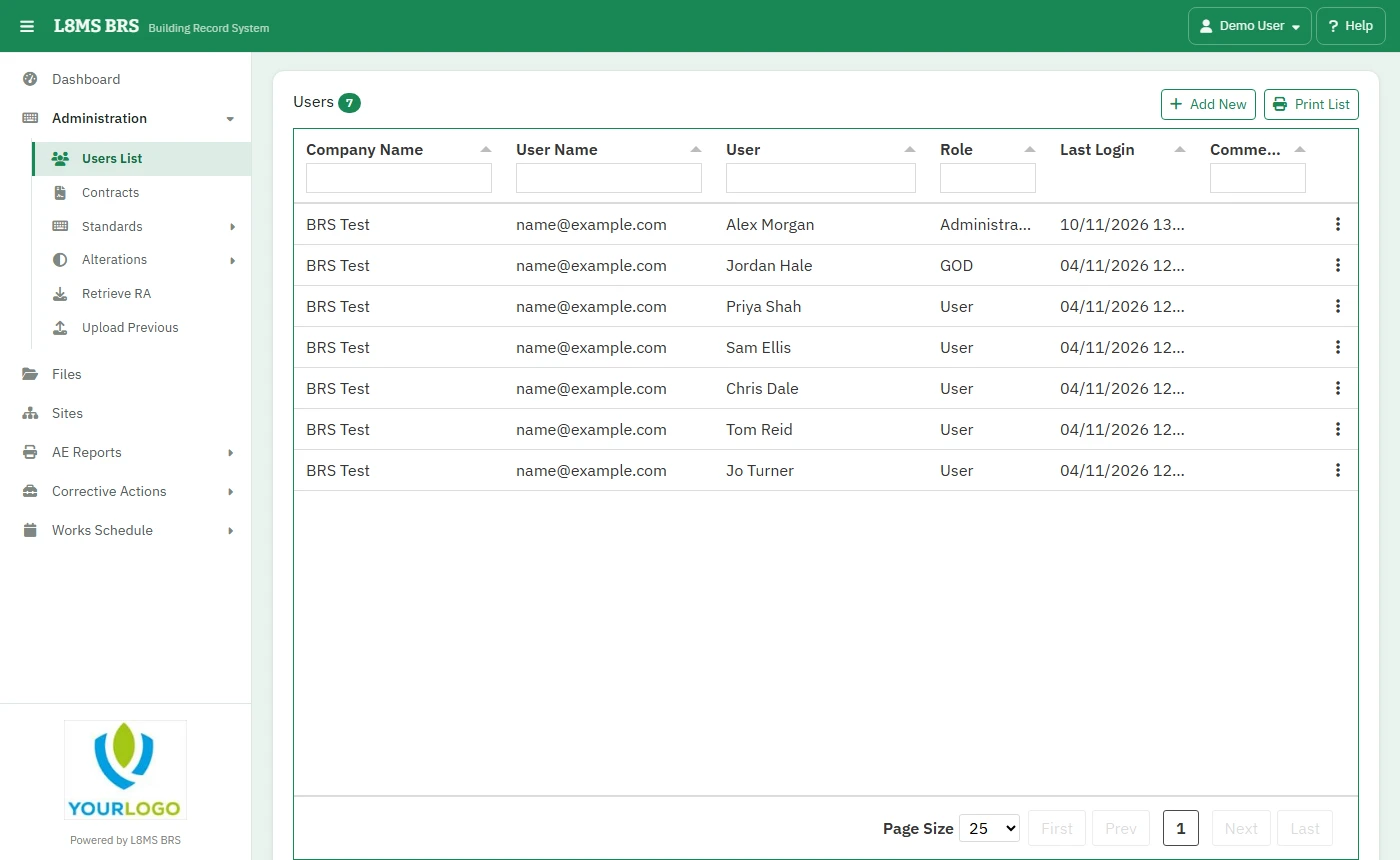 The Users List.
Add a user
Click Add New and choose the company at the top (Add To).
-
Enter their Email Address — this is their username. A Parent Email Address is only needed if they can’t receive email themselves; their emails go there instead.
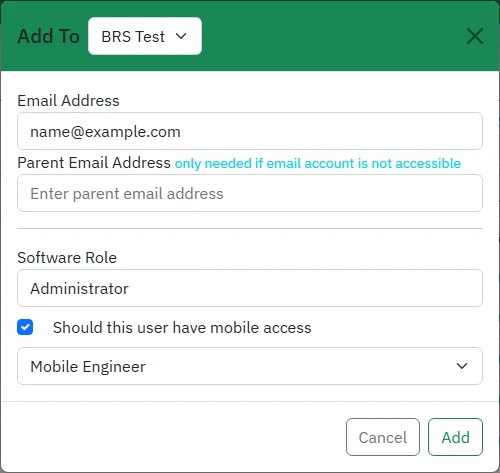 Adding a user.
Pick the Software Role — what they can do across BRS.
For engineers, tick Should this user have mobile access and choose the kind: Mobile Engineer, Mobile Basic, Mobile Plus or Mobile Barcode Only. This lets them use the L8MS BRS app.
Click Add. They are emailed their login details.
A user’s menu
Click a user to open their menu:
- Change Role — change their role, mobile access and comments. The same pop-up has Re-send (the account set-up email), Unlock Account (after too many wrong passwords) and Reset Security Answer.
- Restrictions — which sites they can use and what they can do on each: User restrictions.
- Data Entry — how many results they entered over a date range.
- Login Activity — their sign-in history.
- Delete User — removes them from that company. Someone in more than one company keeps their other roles.
Print List downloads the list.
Two-factorIf an administrator has lost their phone and their backup codes, contact L8MS to reset their two-factor authentication.