By L8MS Team · Updated 10 Nov 2026
History in the site menu opens Asset history: the site’s assets on the left, and the history of the one you pick on the right.
Pick an asset
-
Search the Assets list by asset, location or barcode. Each shows when it was last tested and any open nonconformities.
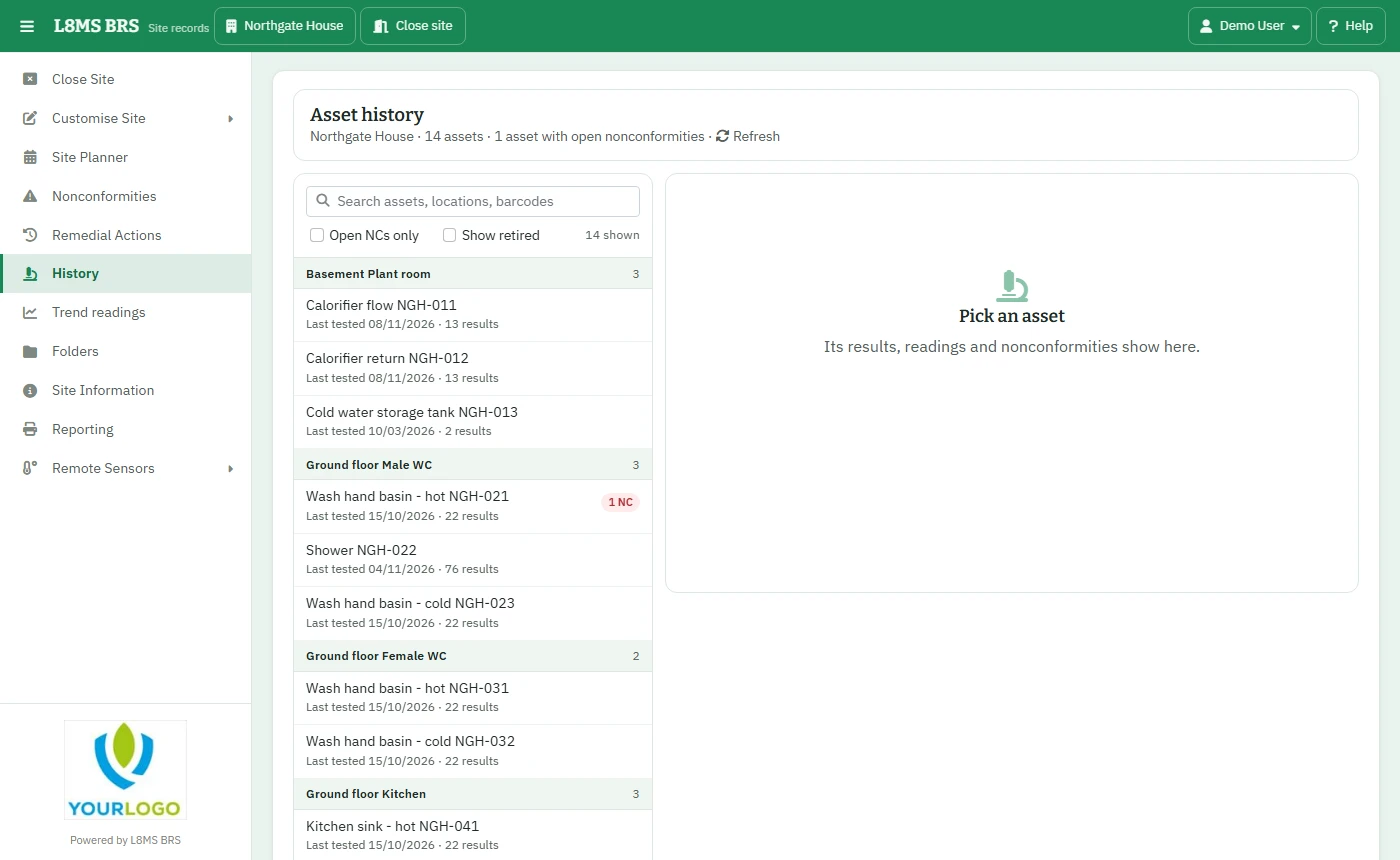 The asset list.
Tick Open NCs only to list just assets with open nonconformities, or Show retired to include retired ones.
Read its history
-
Choose a date range (Last 3 months to All dates). You see the headline figures, a chart of readings for number tests, and every result grouped by visit.
Issues only hides passes. Pick one test to see only that test.
Click a nonconformity to open its Nonconformity record and photos.
Compare with other assets opens Compare readings for the same test. Export downloads every result in the range to Excel.
Share itThe link button copies a link straight to this asset’s history for a colleague who has access to the site.