By L8MS Team · Updated 10 Nov 2026
Site Information in the site menu shows who can use the open site, their Site Level, and the site’s appointed persons. Changing it needs administrator rights on the site.
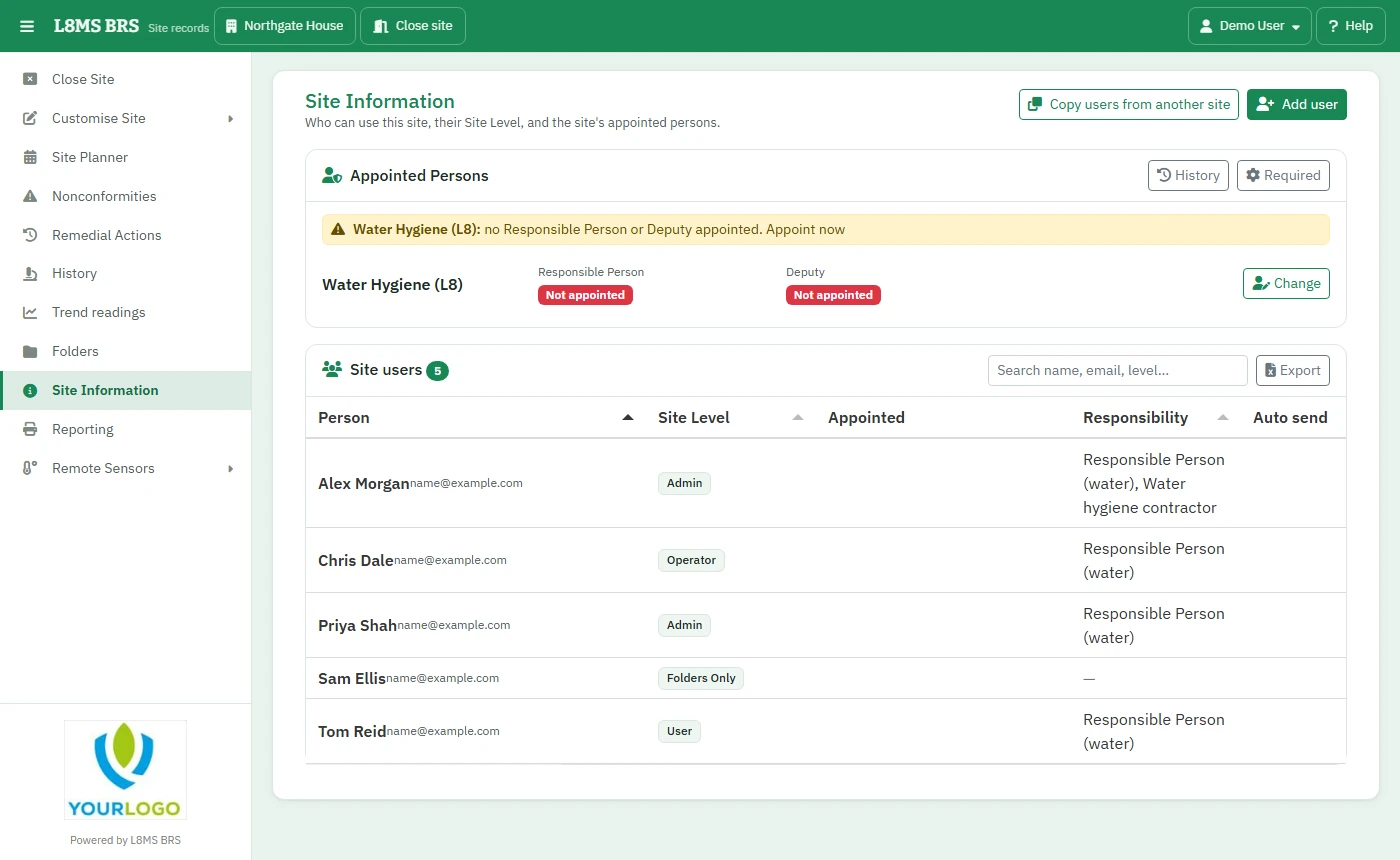 Site Information.
The Site users list
Each person shows their name, email and phone, their Site Level, whether they are Appointed, their Responsibility and whether work is Auto send. Use the search box to find someone, and Export to download the list.
Add a user
Click Add user and choose the User. People already on the site are greyed out.
-
Set their Site Level — what they can see and do on this site — and, optionally, their Responsibility: the group whose tasks they carry out.
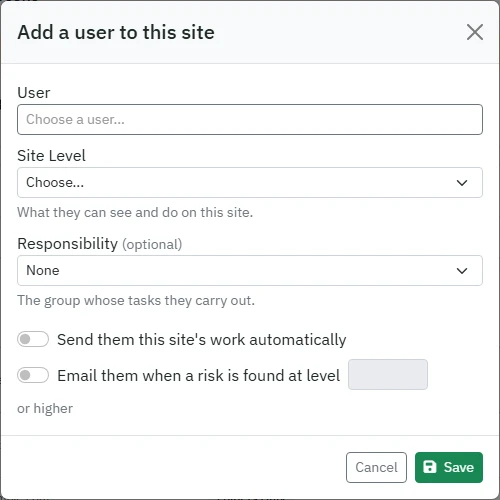 Adding a user.
-
Optional:
- Send them this site’s work automatically — visits for their responsibility are sent to them.
- Email them when a risk is found at level … or higher — enter 0 to 4.
Click Save.
Edit or remove a user
Use Edit on a person’s row to change their level, responsibility or emails. Remove takes them off the site; if they hold an appointment, the pop-up tells you it will end (the history is kept).
Copy users from another site
Copy users from another site lists your other sites. Click Copy on one and confirm: its users are added here with their levels and responsibilities. Nobody already on this site is removed.
Many sites at onceTo give one person access to lots of sites, use User Restrictions instead.