By L8MS Team · Updated 10 Nov 2026
Click Assets & tests on a task to see every asset it visits. Each row shows the asset, its location, and the Month and Year it is visited.
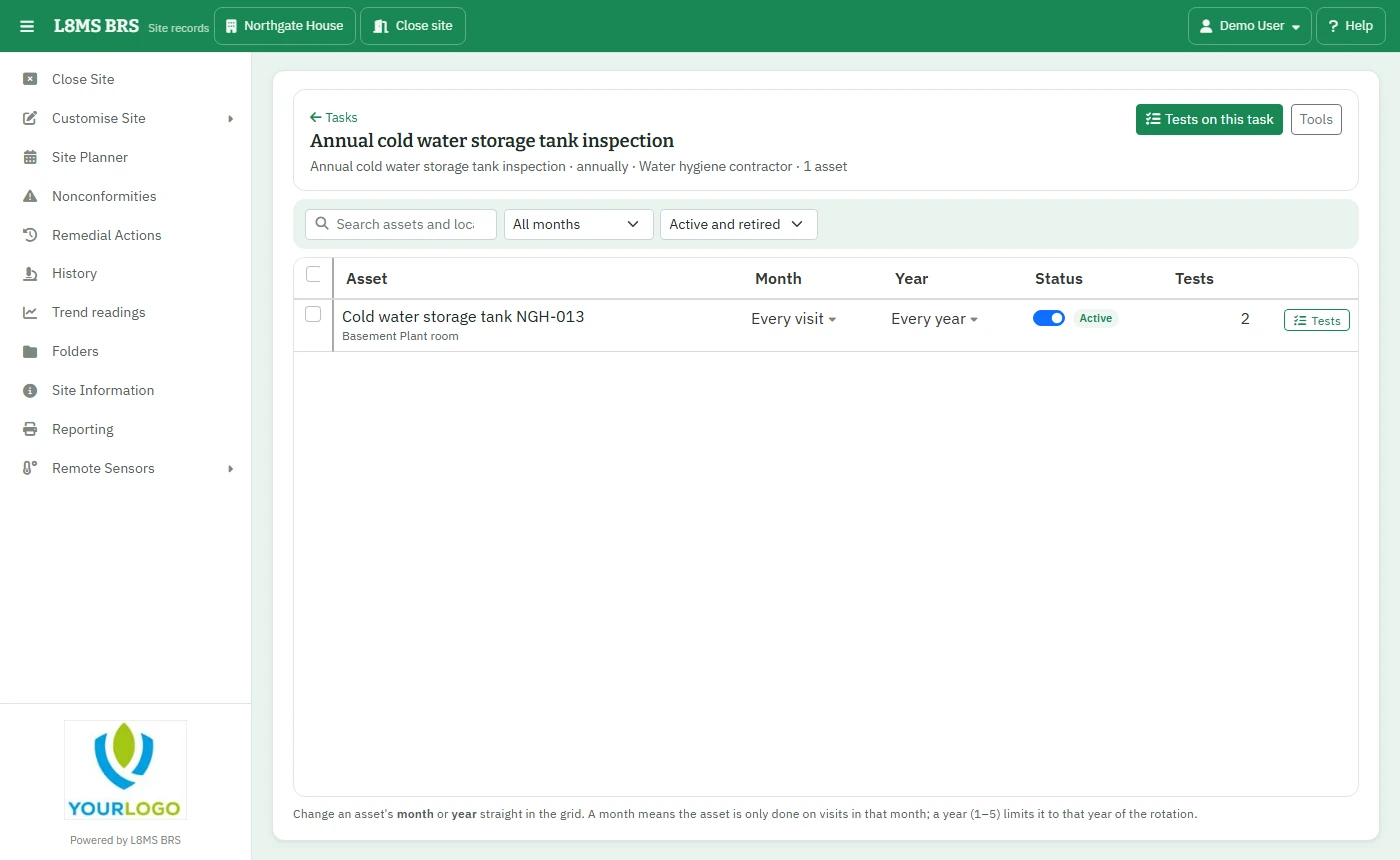 A task’s assets.
Month and Year
- Month 0 and Year 0 — the asset is tested on every visit.
- Month 1–12 — only on visits in that month. Used to spread a big site across the year (rotation).
- Year 1–5 — only in that year of a multi-year rotation.
- 255 — never: the asset stays on the task but is switched off.
- Mixed — the asset’s tests have different values; pick one to set them all.
Change a value in the row, or tick assets and use the Month / Year buttons. Filter by month, or show Active only, Retired only or both.
Retire, restore or remove
Tick assets and click Retire, Restore or Remove. Assets with results are retired rather than removed, so their history is kept.
Tests on this task
Tests on this task lists the task’s tests. Add a test to every asset that is missing it (or the ones you ticked), set its limits for the whole task, or retire, restore or remove it.
Tools
- Spread the rotation — renumbers the months (and years) so the assets are spread evenly. Choose how many years to spread over (more than one year only applies to monthly tasks).
- Asset list (CSV) and Assets and tests (Excel) download the list.