By L8MS Team · Updated 5 Nov 2026
The Print page (Report generation) produces the finished assessment document.
Steps
Open Print from the assessment sidebar (under Reports). Every available report is listed with a type badge — Custom (your company’s own report layouts), Standard (the built-in L8MS layouts) or Sections (individual parts).
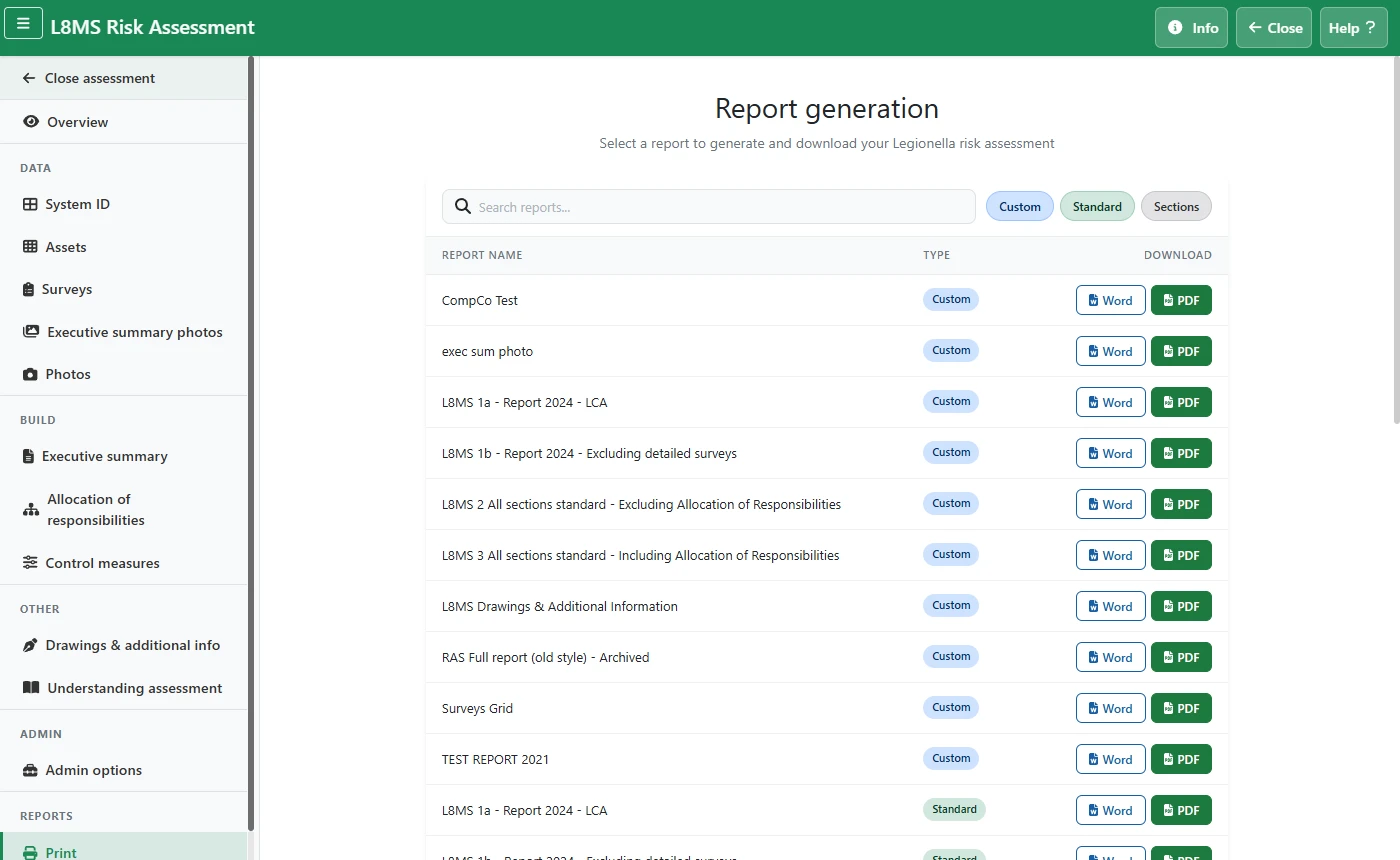 Report generation.
Use the search box and the Custom / Standard / Sections pills to narrow the list.
On the report you want, click Word or PDF. A progress panel shows each section being built and an estimated time; the file downloads when it finishes. Large reports can take a minute or two.
Check the alerts firstBefore generating the final report, open the assessment overview and clear any outstanding alerts — missing recommendations, an out-of-date executive summary or control scheme, no review date, and so on.
Custom report layoutsCustom reports are set up by an administrator under Report Settings, which also sets the Word template (cover, headers and footers, styles) each one uses.
Report footer referenceIf the assessment has an Assessment Reference, it is printed on the report footer. Set it on the overview page.