By L8MS Team · Updated 10 Nov 2026
Open Password & security from the menu under your name (it is the Security tab of My account).
Change your password
-
Enter your Current password, then the New password twice. The checklist ticks off each rule as you type: at least 8 characters, a capital letter, a lower-case letter, a number and a special character.
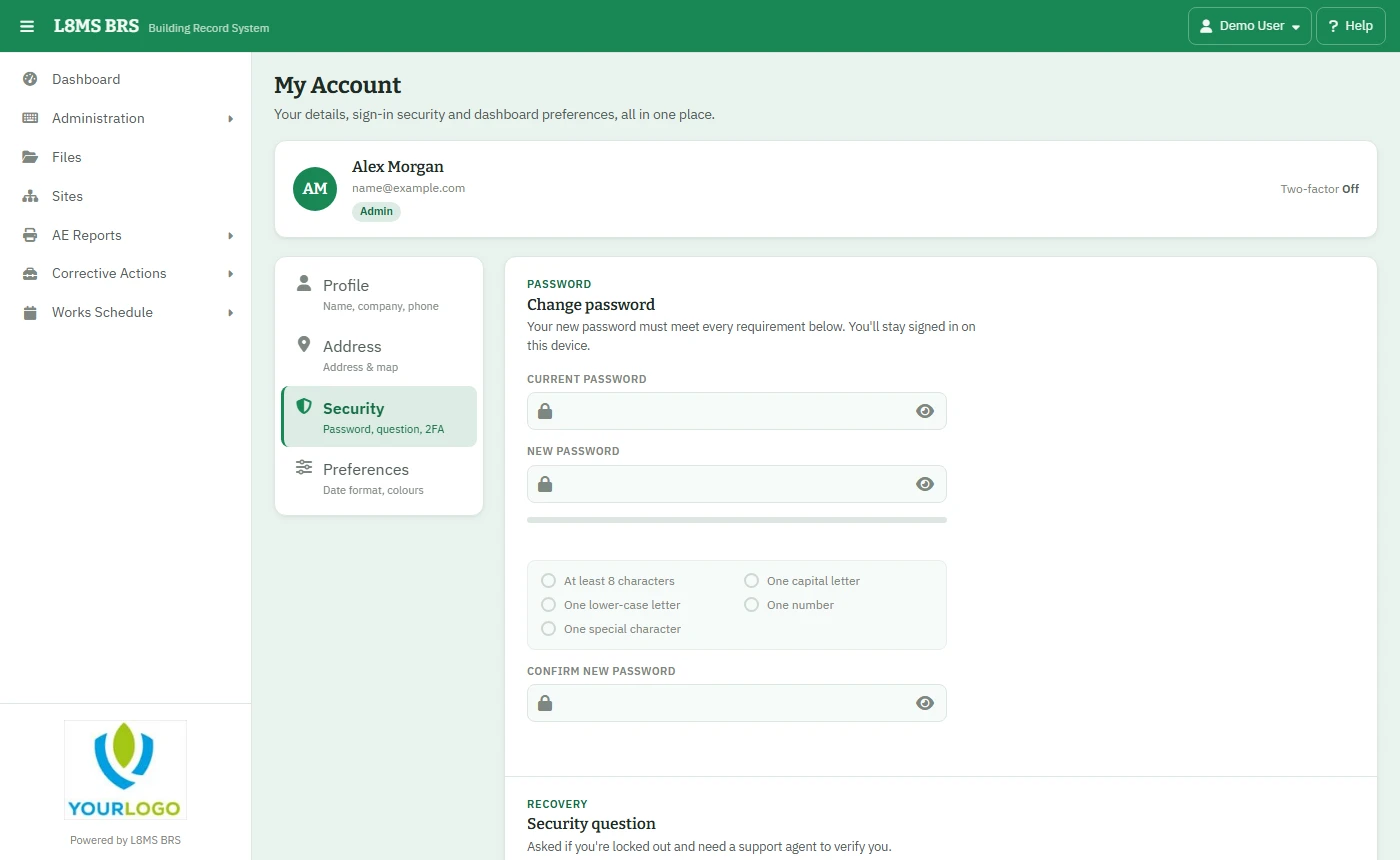 Password and security question.
Click Update password. You stay signed in on this device.
Security question
Set your Question, type your Answer and click Save answer. You need it to reset your password, and support may ask it to check it is you.
Two-factor authentication
If your company uses two-factor, this card shows Two-factor is on, when it was added and how many backup codes you have left out of 8.
- Regenerate codes — a fresh set of 8 backup codes; the old ones stop working. Do this when the meter says you are running low.
- Replace authenticator app — for a new phone. You scan a new QR code, the same as setting it up.
- Turn off — only available when your company does not require two-factor.
Each of these asks for a current 6-digit code from your app first.