By L8MS Team · Updated 10 Nov 2026
Upcoming workload (a card on the Reports hub) counts the work already planned for the coming months — for resourcing engineers.
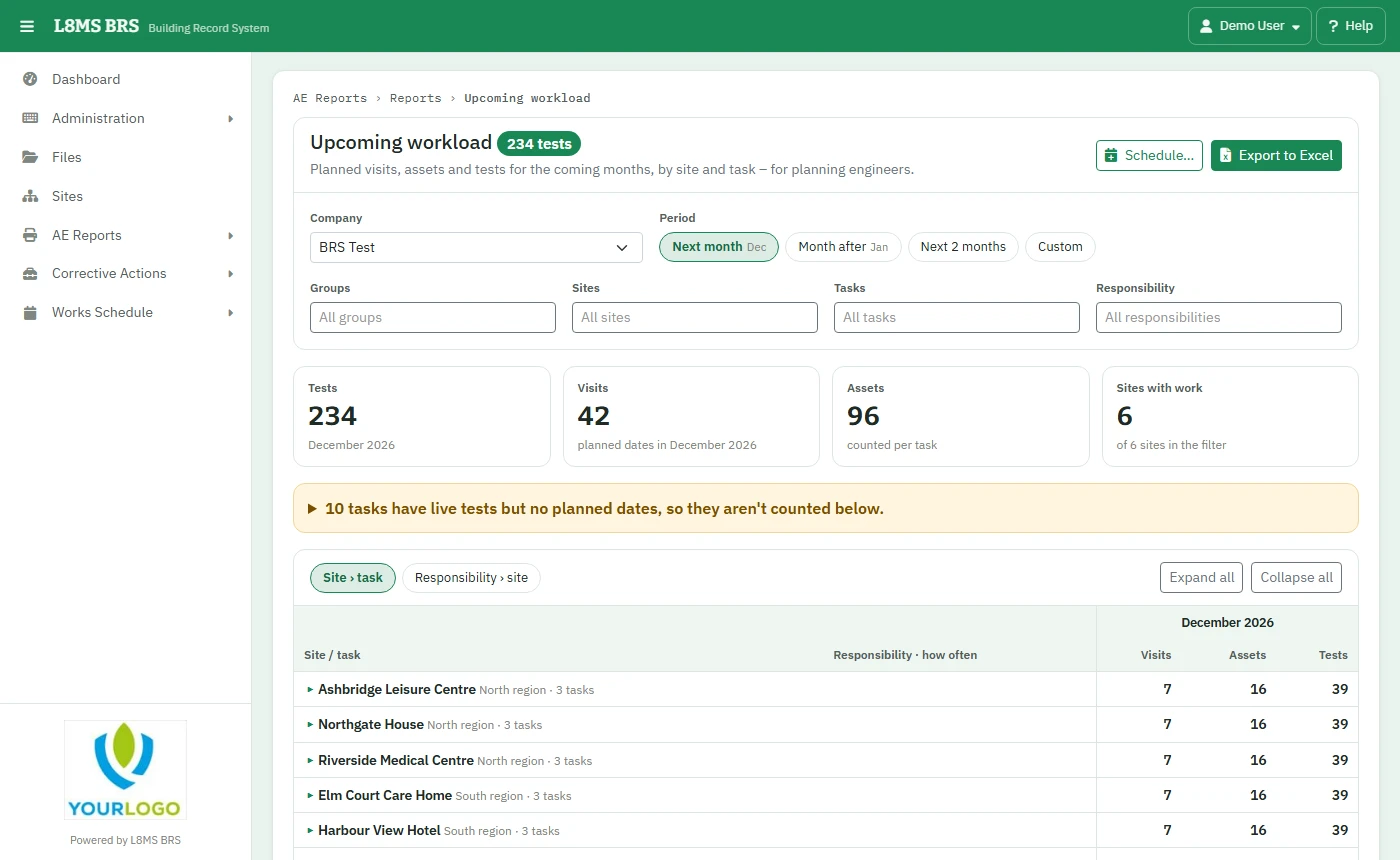 Upcoming workload.
Steps
Choose the Company and Period: Next month, Month after, Next 2 months or Custom (up to 3 months).
Narrow by Groups, Sites, Tasks and Responsibility (empty = all).
View by Site › task or Responsibility › site; Expand all / Collapse all.
Export to Excel downloads a summary, the visits and anything not planned.
How the counts work
- Visits — the planned dates in the month, plus any visit already started early.
- Assets — the assets each task will visit that month, using its month / year rotation. For tasks that pick random outlets it is the most they can visit.
- Tests — per visit: 18 tests × 5 visits = 90 tests. This is the figure to plan engineer time against.
Not plannedOnly tasks the site planner has planned are counted. Current tasks with nothing planned are listed in an amber box — re-plan those sites.