By L8MS Team · Updated 5 Nov 2026
A survey is a set of questions for one asset or system type — a calorifier survey, a cistern survey, a management survey, and so on. The Surveys page lists every survey on the assessment, grouped by type.
The list
Each row shows the survey type and version, its reference, its location, a completion %, the number of recommendations, and a count of any missing recommendations (a red cell means a rating is above 0 with no recommendation written). A yellow row means a newer version of that survey is available.
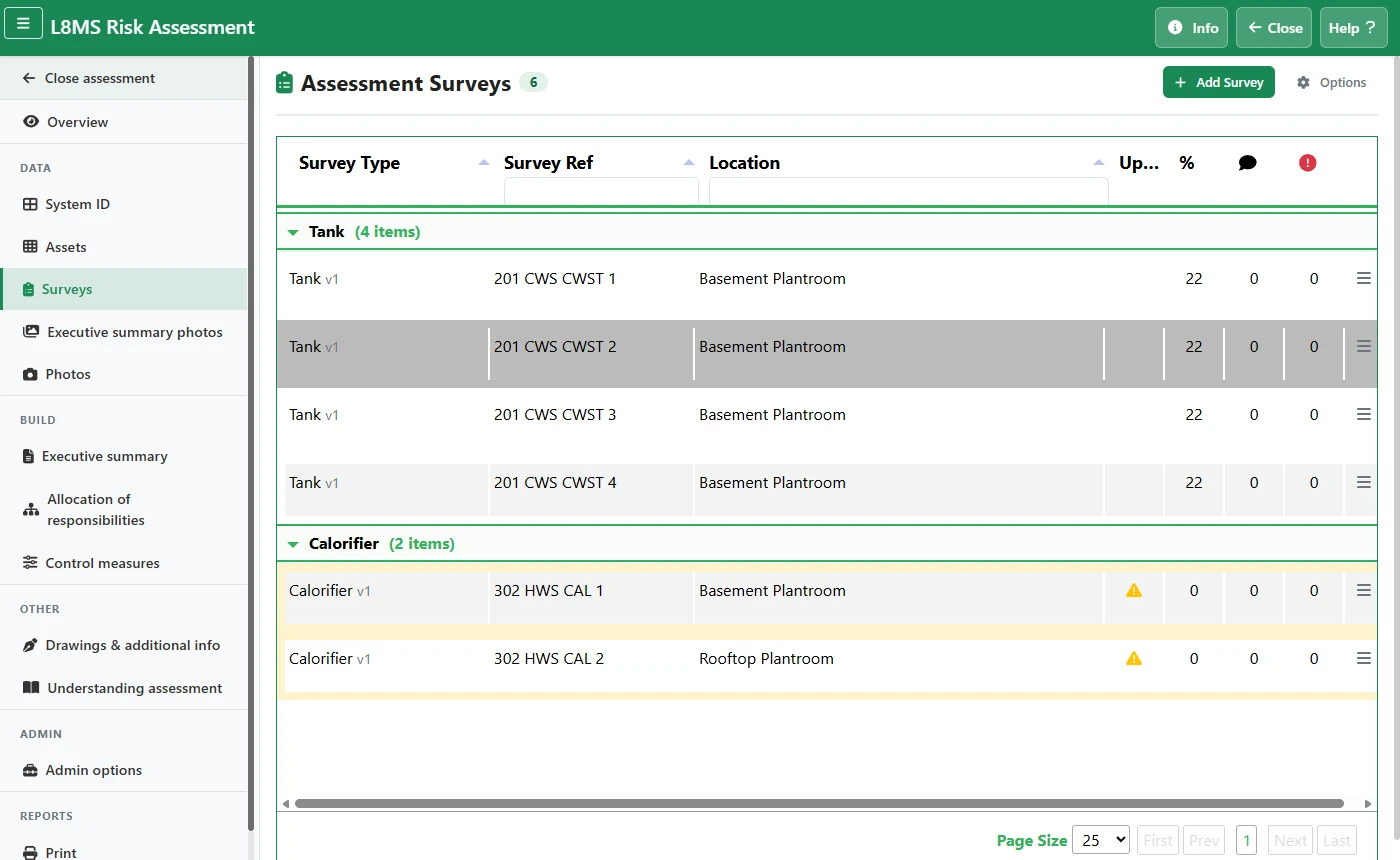 The Surveys page.
Add a survey
Click Add Survey. Choose the Survey Type; a reference number is suggested.
Type or pick a System ID and click Fill to copy its location and systems-served text across. Set the Asset ID and Floor / Location.
Click Add Survey — it opens straight away for you to answer. See How to complete a survey.
Row actions
Click a row for the options menu:
- View Survey — read-only.
- Edit Survey — answer or change the questions.
- Copy Survey — duplicate it for another asset; you set a new asset ref, floor and location.
- Download Survey — export this survey to Excel.
- Delete Survey — permanent.
- Upgrade Survey — shown only when a newer version exists; moves the survey to the latest question set.
Options buttonOptions has a blank template download per survey type, an Export Corrective Actions spreadsheet, and a bulk survey upload.