By L8MS Team · Updated 5 Nov 2026
Opening a survey for editing shows one question at a time, with an Answer, two risk ratings and a Recommendation box.
Move through the questions
Use the previous / next arrows (or the ← → keys) to move between questions. The counter shows “3 / 18”; going past the last question takes you back to the first. Your answer and ratings are saved each time you move.
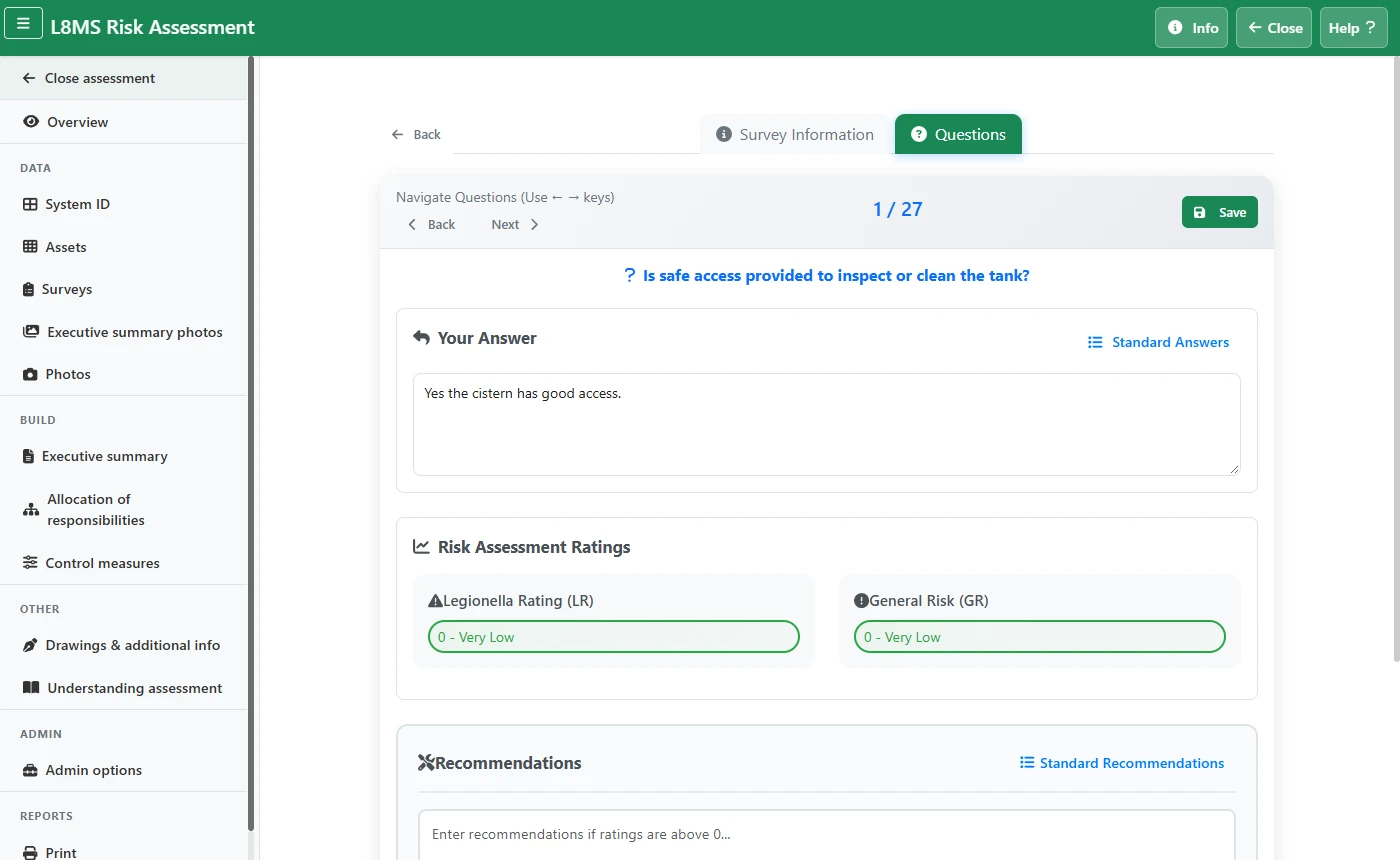 Answering a survey question.
The Guidance line under the question gives the regulatory background for that point.
Answer and rate
Type your Answer, or click Standard Answers to choose a pre-written answer — picking one also sets its suggested ratings.
-
Set the two ratings (0–4):
- LR — Legionella Rating: the assessor’s estimate of likelihood relating to Legionella control.
- GR — General Risk: general safety concerns such as scalding or working at height.
See Understanding the LR and GR ratings for what each level means.
-
If either rating is above 0 you must write a Recommendation. The box turns red until you do. Standard Recommendations gives you saved wording. If both ratings are 0, no recommendation is needed.
Or click the save button to save without moving. A “Saved” message confirms it.
The survey details
At the top of the survey are its System ID, Asset Ref, Floor - Location and Systems Served. Correct them there and click the save button beside them.
Signed out mid-survey?If your session ends before an answer is saved, you are sent to sign in. The unsaved answer is kept in your browser and put back when you open that question again — it saves when you move on.
Watch the counts on the Surveys listThe Surveys page flags any survey with a rating above 0 and no recommendation. Clear those before issuing the report.