By L8MS Team · Updated 5 Nov 2026
Drawings & additional information holds documents that go into the appendices of the report — site drawings, schematic diagrams, certificates, floor plans.
File type follows the sectionSections like Diagram, Appendix, Certificates and Floor plan take PNG images. Every other section takes PDF. The upload box shows which is expected once you pick a section.
Steps
Open Drawings & additional info from the sidebar (under Other) and click Upload File.
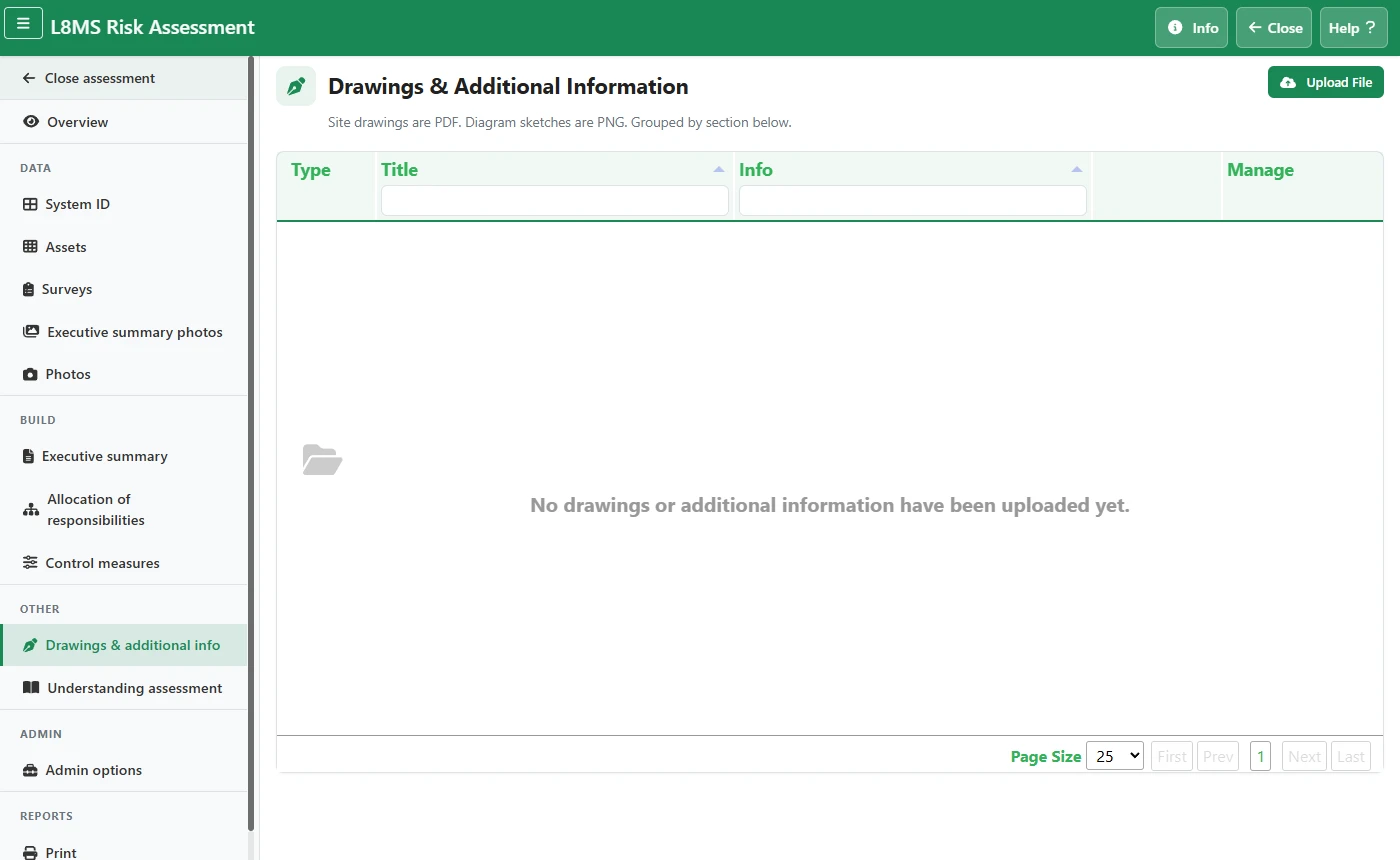 Drawings & additional information.
Choose the section, then drag the file in (or click to browse) and click Upload.
In the list, use Download to get a file back, Edit to change its Order No, File Title and Description, and Delete to remove it.
How the files appear in the report
That depends on which section your report layout uses — set by an administrator in Report Settings:
- Drawings & Additional Information — lists the files with a download link to each.
- Additional Information — puts the files themselves into the report: a heading for each upload section (so they appear on the contents page), then each file’s pages as images, with landscape drawings on landscape pages. Each image links to the original file.