By L8MS Team · Updated 5 Nov 2026
Control Measures (Administration › Customisations) holds your control scheme templates. When an assessor chooses Options › Build from template on an assessment’s Control measures page, the template’s measures are created, with locations filled in from that assessment.
The structure
A scheme (e.g. “Commercial – standard”) holds measures (e.g. “Calorifiers”), and each measure has sections — the paragraphs for each frequency (weekly, monthly, annually…).
Create a scheme
Click Add Measure. Choose the Company and give it a clear Measure Title.
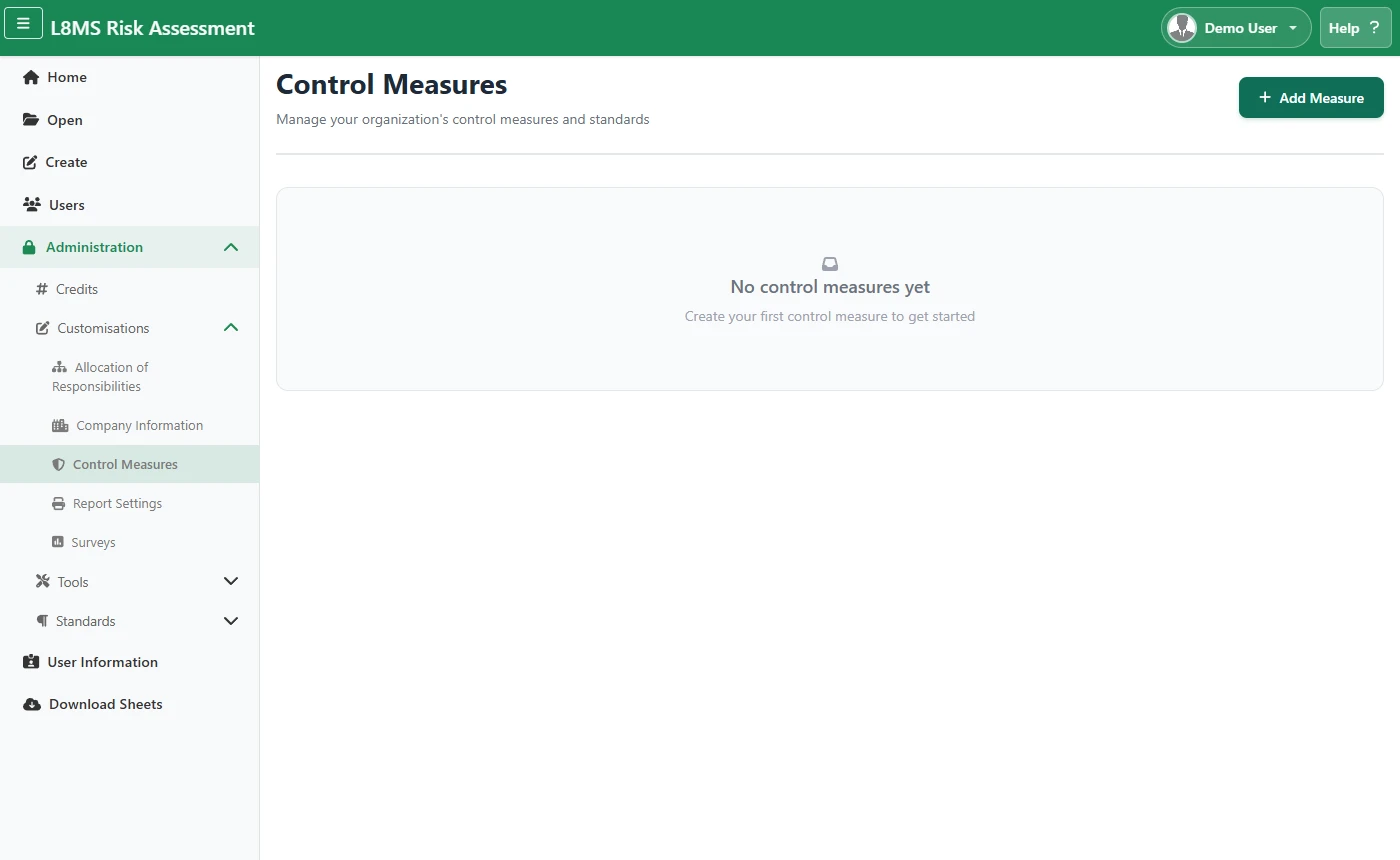 Control scheme templates.
Under Start From a Template, choose an existing scheme to copy — an L8MS public one or one of your own — or Create new from scratch. Click Create Measure.
Use a row’s Actions menu to Edit the scheme’s measures or Delete it.
Add the measures
Edit opens the scheme’s list of measures. Click Add New Measure.
-
Fill in:
- Order Number — where it appears.
- Section Title — the heading, e.g. “Calorifiers”.
- Section Type — Control Measure, or Corrective Action Locations for the corrective actions list.
- Apply to — where its locations come from: the Asset register, Asset Comments, Surveys, Photos, or the whole Assessment.
- Section Text — the word or words to look for there, e.g.
calorifier. For Apply to: Asset, every asset whose type contains it is listed as a location.
- Dead Legs / Infrequently Used — limit it to assets flagged that way.
- Exemption Items — for Apply to: Asset, words separated by commas (e.g. sentinel, spray). Asset types containing any of them are left out.
Copy Measures copies all of this scheme’s measures into a new scheme for another company.
Add the sections for each frequency
On a measure’s Actions menu, choose Edit Sections.
Add a section for each task: an Order no., the Frequency (e.g. Weekly) and the Paragraph — the wording that appears on the assessment and in the report. Click Save section.
Test it on a real assessmentBuild your scheme on an assessment and check the measures and locations it produces before relying on it. Building again replaces everything on that assessment.