By L8MS Team · Updated 5 Nov 2026
The Control measures page holds the written control scheme — the ongoing monitoring and maintenance tasks for the site — and a Corrective actions list of the work the surveys flagged.
Build from a template
Open Control measures from the sidebar (under Build). It opens on the Control measures tab.
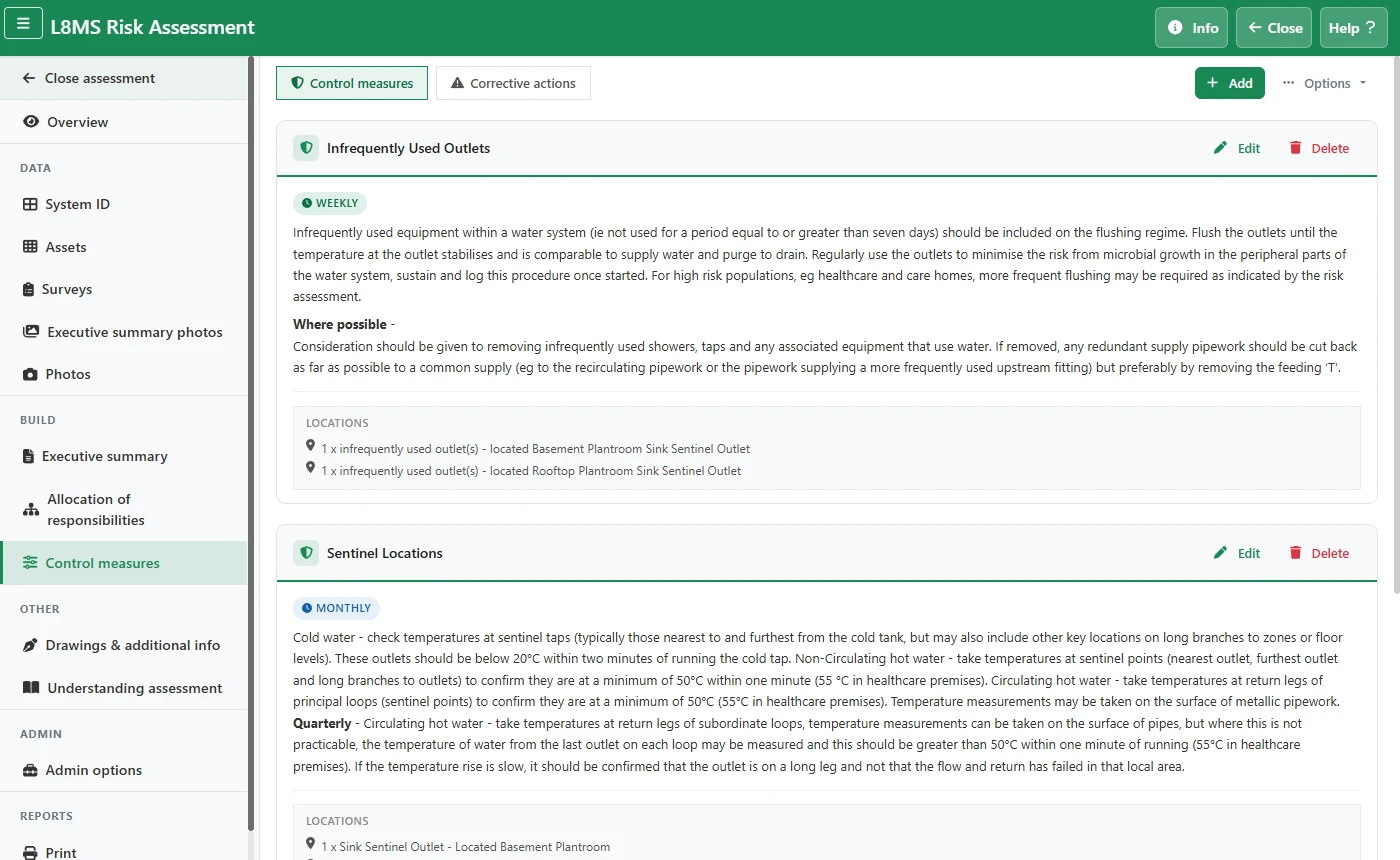 Control measures.
Click Options › Build from template, choose a scheme template, and click Build. The template’s sections are created with their frequencies (weekly, monthly, quarterly, annually).
Building again starts from scratchBuilding replaces every section on the assessment, including any you have edited or added. The Build window warns you when there are sections already.
Add your own section
Pick the tab the section belongs on — Control measures or Corrective actions — and click Add.
Give it a Title (e.g. Fire suppression system), choose its Position (at the top, after an existing section, or at the end), and fill in the Information and Locations.
Click Save changes.
Edit and tidy
Edit any section to change its title, position, Information or Locations, or delete one you don’t need.
The Corrective actions tab lists the locations that need work, pulled from the survey findings.
Options › Extract to Excel downloads the control measures. Options › Clear all deletes every control measure — it asks you to confirm and cannot be undone.
Out-of-date alertLike the executive summary, the control scheme shows an alert on the assessment if the content has changed since it was last built.