By L8MS Team · Updated 5 Nov 2026
Company Information (Administration › Customisations) holds your company’s details and how reports are branded.
Details
Enter the company name and address. This can appear on reports and certificates.
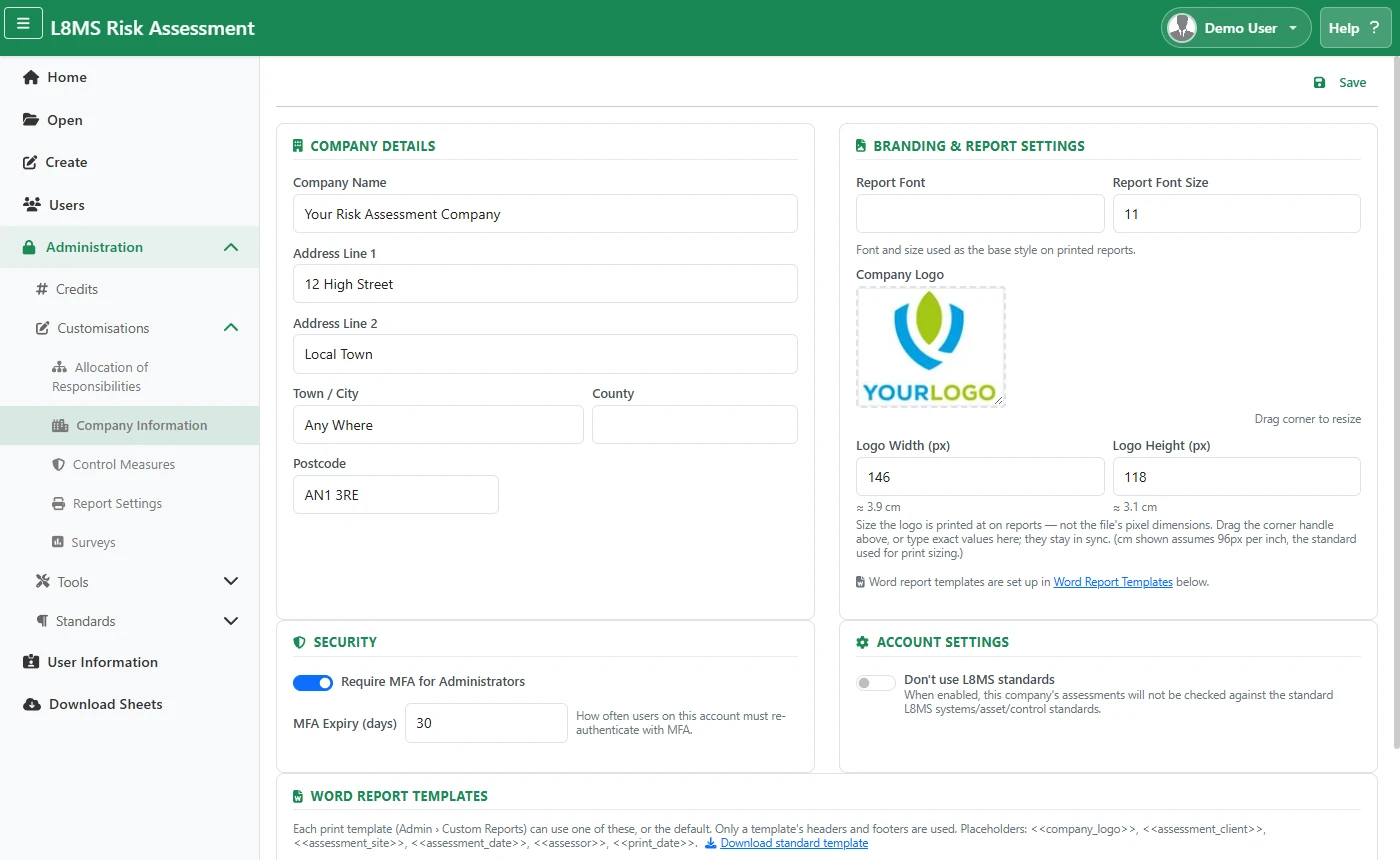 Company Information.
Branding & report settings
Set the Report Font and Font Size used as the base style on printed reports.
Company Logo — click the preview box or drag an image onto it. Drag the corner handle to set the size the logo prints at (the pixel values and the box stay in sync; a centimetre estimate is shown).
Security & account settings
- Require MFA for Administrators — forces two-factor authentication for admin accounts on this company.
- MFA Expiry (days) — how often users must re-authenticate with MFA.
- Don’t use L8MS standards — when on, this company’s assessments are not checked against the standard L8MS systems / asset / control standards.
Click Save at the top to store the details, branding and settings.
Word report templates
A Word template gives your reports their headers and footers — your branding on every page. You can keep several (for example one per client or brand) and choose which one each report layout uses in Report Settings. Only a template’s headers and footers are used.
Click Download standard template for a starting point. These placeholders are filled in when a report prints: <<company_logo>>, <<assessment_client>>, <<assessment_site>>, <<assessment_date>>, <<assessor>>, <<print_date>>.
 Word report templates.
Give it a New template name (e.g. NHS branding), drop in the Word document (.doc or .docx), and click Upload template. Templates upload on their own — no need to press Save.
The list shows each template, which reports use it, and when it was uploaded. Use Download, Replace (a new file, same name), Rename, Make default or Delete.
The default templateReports set to Company default use the template marked Default. With no templates at all, reports print with the standard layout.