By L8MS Team · Updated 5 Nov 2026
Several sections of an assessment — System ID, Assets, Surveys, Allocation of responsibilities, Executive summary, Control measures — can be filled in with an Excel spreadsheet instead of typing on screen. This is handy for entering a lot of data, or for working on site without a connection.
Where to find itOn each of those pages, click Options (the cog). The pop-up has the same three parts everywhere: download a blank template, download the current records, and upload a completed file.
Steps
Download Blank Template gives you an empty spreadsheet with the right columns and (where relevant) drop-downs.
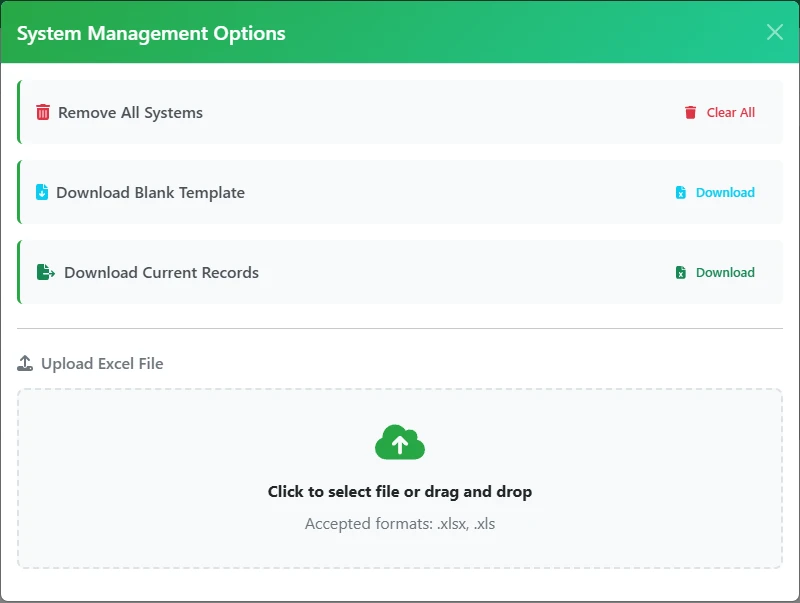 The Options pop-up.
Download Current Records exports what is already in the assessment — use it to check your data, or as a starting point to edit.
Fill the spreadsheet in. Keep the column headings and the sheet layout exactly as they are.
Back in Options, drag the file onto the upload area (or click to browse) and click Upload. The page reloads with your data in.
Uploads usually replace, not mergeFor Assets and Surveys especially, uploading a file replaces the existing records for that section. Export the current records first if you want to keep them. Read the wording in each pop-up — it tells you what that upload will do.
Only ExcelFiles must be .xlsx or .xls. Other formats are rejected. Blank templates are also on the Survey Downloads page.