By L8MS Team · Updated 5 Nov 2026
The Executive summary is the narrative at the front of the report. Some sections are generated from your survey answers; others you write.
Generate
Open Executive summary from the sidebar (under Build) and click Generate / Upload.
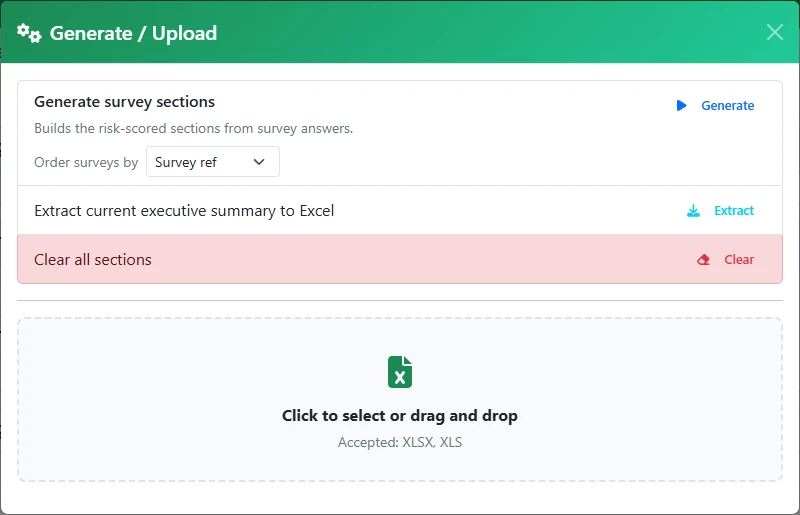 Generate / Upload.
Generate survey sections builds the risk-scored sections from the ratings and recommendations you have entered in the surveys — one heading per survey. Choose Order surveys by Survey ref (the default, so POU2 comes before POU10) or Location (A-Z), then click Generate. Run this after the surveys are complete.
Generating again rebuilds the survey sections; the sections you wrote yourself are kept.
Other options in the pop-up: Extract the current summary to Excel, Clear all sections, or upload a completed Excel file.
Edit a section
Back on the main page, click a section to open the full-screen editor.
Type your text. Where a section supports it, the Standard text drop-down replaces the content with saved wording. Changes save automatically a couple of seconds after you stop typing, and Save stores them immediately.
Back returns to the section list.
Keep it up to dateIf you change survey answers or ratings after generating, the assessment shows an alert that the executive summary is out of date — re-generate it.