By L8MS Team · Updated 5 Nov 2026
Allocation of Responsibilities (Administration › Customisations) is where you build the reusable AOR templates an assessor pulls into an assessment with Build allocation from AOR.
The structure
An AOR is a tree: Profile → Sections → Tasks. Expand a row to see and add the level below it.
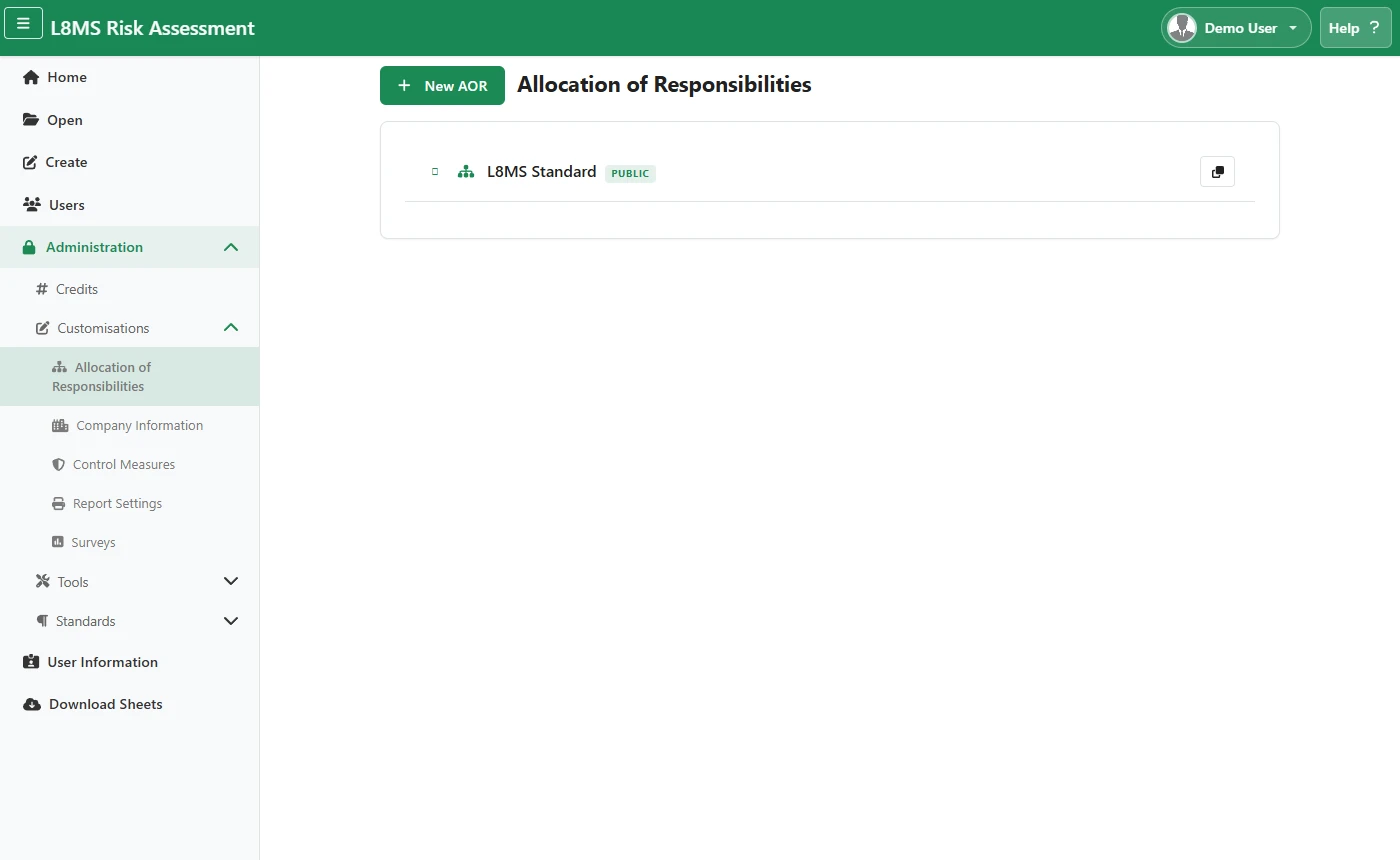 AOR management.
Steps
New AOR creates a profile: a Title, and whether it is Retired (no longer offered) or Public. Copy AOR Profile duplicates a whole profile under a new title — handy for a v2.
On a profile, add Sections: name, order, optional section text (initial column text, pre-text and post-text), and a Rule. The rule decides when the section appears: Always Shown, or only when matching Assets or Surveys are on the assessment. With no match it can be left out or show a Standard message, and it can show the match count in its name (e.g. “3 x Calorifiers”). Hide from Allocation of Responsibilities keeps a section out of that list.
On a section, add Tasks: task text, order, optional frequency and description, and Search Rules — Keywords and Exception Words matched against the Asset Register or the Surveys on the assessment. Flags narrow it to Infrequently used or Dead leg assets, and the match count can show in the task text.
Key Tasks (the list icon on a profile) manages the key-individual roles attached to the profile.
Each task’s Actions menu also holds Water Management Plan detail (control limit, control measure, recommended interval) and a Test Layout (the JSON that defines the task’s test form).
Advanced featureRules and test layouts are powerful but fiddly. Build a profile, run it against a real assessment with Build allocation from AOR, and check the result before relying on it.